
Do you need your classes unfrozen or want an unlock all lobby or some other mods?
If you would like any of the services listed below for any OG CoD game, Join the discord using the button below.
Last Updated: 2/06/2026
- Challenge Lobby/Unlock All
- Account Reset
- Unfreeze my classes
- Colored Classes
- Infections
- Your own mod menu
- And more!
Downloads
Required Downloads
Last Updated: 12/26/2024
- *Xbox 360 Neighborhood — Tool used to set up FTP between your PC and console (removes the need for a USB stick).
- *Superiority — Xbox/mod tool via FTP.
- *ISO2GOD — Converts downloaded ISOs and automatically transfers them to your Xbox.
MW2 Downloads
Getting Started
To get started, we are assuming you have the following prerequisites:
- Hard-modded Xbox 360 (RGH/JTAG) with internet connection — Buy one here.
- A PC with everything marked with * downloaded from the Downloads section.
- Plugins:
- Plugin 1: xbdm.xex
- Plugin 2: xbGuard.xex (or other preferred stealth server)
- Plugin 3: JRPC2.xex
The files you downloaded are tools that will be used to make file transfers much easier, as well as automate some of the processes involved with modded Xbox 360s. Assuming you meet all of these prerequisites, move on to the next step.
Xbox 360 Neighborhood
Run "XBOX360 SDK 21256.3.EXE" and go through the setup wizard: Next → Next → choose "Minimal Installation" → Next. Let the program install, then open it.
Run the new program you should now see on your dashboard: "Xbox 360 Neighborhood". You should see a file explorer window and a button that says "Add Xbox 360".
On your Xbox, go to Network Settings, press A on your network, then press “Configure” and you should see a screen like this:
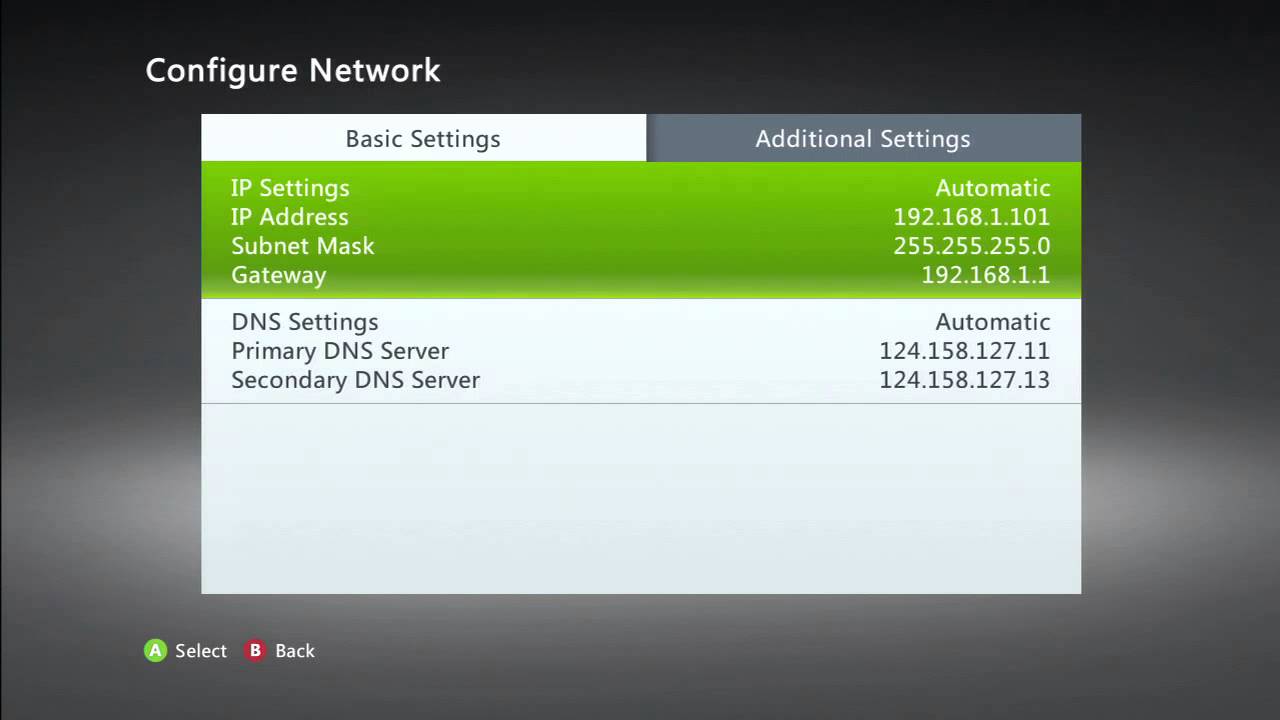
Take note of your IP address.
Back on your PC in the Xbox 360 Neighborhood program, press "Add Xbox 360". Press Next, then enter the IP address you just grabbed. Press Next, choose "Yes" if this is your first connection to your Xbox, then press Finish. You should now see your device as "Jtag" next to the "Add Xbox 360" button.
Success: Xbox Neighborhood is now set up.
Superiority
Extract the files from "Superiority.zip" to a directory you'll remember
(e.g. Documents/Superiority). You must have Neighborhood set up for this part.
Run Superiority and you will be greeted by a very… colorful setup wizard. Click Begin, then tap Yes to connect to your console. It will ask you to log in; if you don't have an account, create one and then log in.
Next set the game directory for your console, then set the directory for your plugins. Superiority will install.
Open Superiority. At the top center is a box titled "Login and connect". Enter your login credentials and tap "Connect to console". On your Xbox you should see a notification confirming the connection.
ISO2GOD
*ISO2GOD is not strictly necessary, but it makes things very simple so it's included here. It takes Xbox 360 ISOs and converts them to GOD (Games On Demand) format so your games show up directly in the Games section on your Xbox.
Extract the files from iso2god_vxxx.rar to a directory you'll remember
(e.g. Documents/iso2god) and then run iso2god.exe.
Click on the Settings button and enter your FTP information. Username and password should
both be xbox. IP address is the same one you used for Neighborhood. Press
Save Changes.
To use ISO2GOD, download an ISO of your desired game and drag the file into ISO2GOD. Press Convert. It will convert the ISO to a GOD and automatically put the game where it needs to be on your RGH via FTP.
Modding MW2
In this section we’ll go over how to use a mod menu on
Call of Duty: Modern Warfare 2. The menu used is
iKonroi's V5. Download it from the Downloads section — inside you’ll see a folder
titled iKonroi. Inside that folder is another RAR file, plus a
Default_MP.xex file and an iKonroi.menu file.
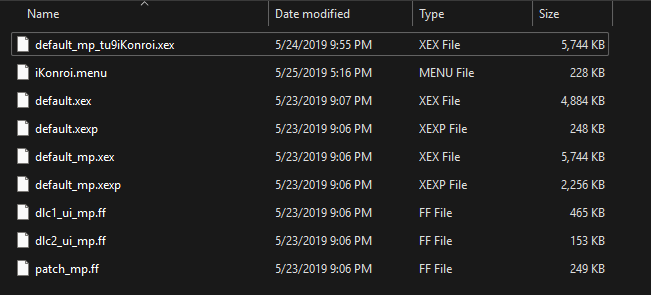
Extract the files from the "iKonroi_v4_tu9" RAR file to the same directory as the two files from the first RAR. You should be left with something like this:
Before continuing, make sure you have a fresh install of MW2 on your RGH console.
The best way is to use a disc copy of MW2. Insert it in your Xbox, open the
XeXMenu app, navigate to the disc drive, and copy the contents to a new directory
(e.g. HDD/Games/MW2). This can take a while due to game size.
With a fresh copy installed, open Xbox 360 Neighborhood and navigate to where the game is stored on your console. You’ll see all the files that make up MW2. Copy the files you downloaded (from the iKonroi folder) into this MW2 directory. When prompted that files already exist with the same names, always replace the old files with the new ones.
That’s it — your mod menu is installed. To use it, you must start the game by opening XeXMenu, navigating to your MW2 directory, and running "default_mp_tu9iKonroi.xex". MW2 will open directly to Multiplayer where you can continue as normal.